How to Turn a Canva Printable Into an Interactive App With Canva Code
What if the printable you already created could become an interactive app?
That’s what I wanted to find out when I opened Canva AI Code and gave it my 30-Day Focus Planner.
The original planner has 48 printable pages. Someone would normally download the PDF, print the pages, and fill them out by hand. That works, but some customers would rather complete everything online.
I could have created a fillable PDF, but I wanted to see whether Canva could take the idea further.
It did.
What Canva AI Code Created
I asked Canva to turn my printable planner into an interactive experience.
The app it created allowed someone to:
- Choose a main project
- Explain why the project matters
- Add milestones
- Set weekly priorities
- Plan blocks of time
- Track energy
- Record daily wins
- Rate the day
- Complete weekly reflections
- Save ideas and links
- Review progress across the 30 days
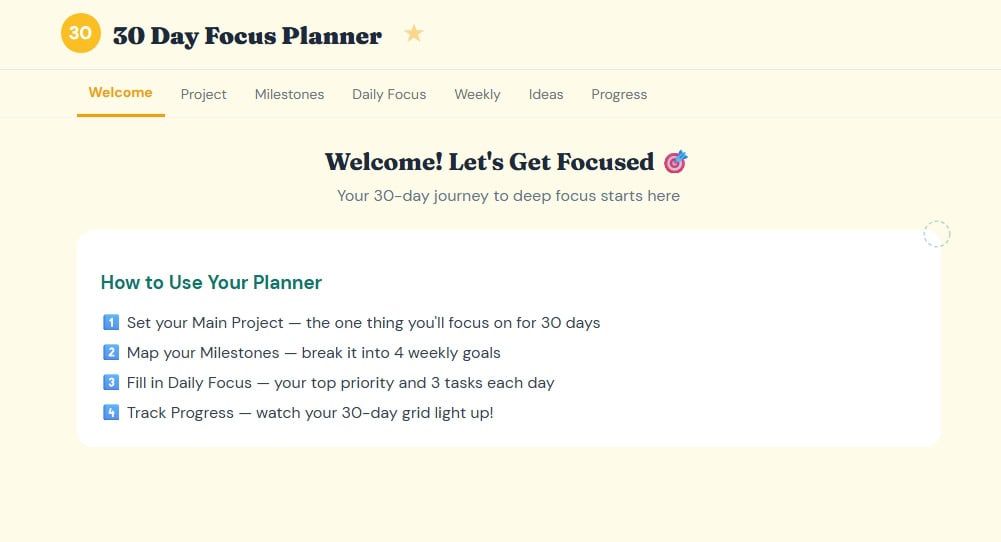
It wasn’t simply displaying the original pages on a screen. Canva recreated the planner as an interactive tool.
Was it perfect on the first try? No.
But it was usable, and that gave me something concrete to test and improve.
You Don’t Have to Know How to Code
The word “code” can make this sound more complicated than it is.
I didn’t sit down and write the code for this app. I described what I wanted Canva to build.
I uploaded images from the planner and explained how the interactive version should work. Canva generated the first version, and then I started testing.
That testing step is important.
I clicked through the pages, entered sample information, saved milestones, added priorities, tested the daily log, and looked at the progress page.
When something was missing, I went back to Canva and explained what I wanted changed.
Treat Your First Version Like a Draft
The first app looked good, but the progress section didn’t include everything I wanted.
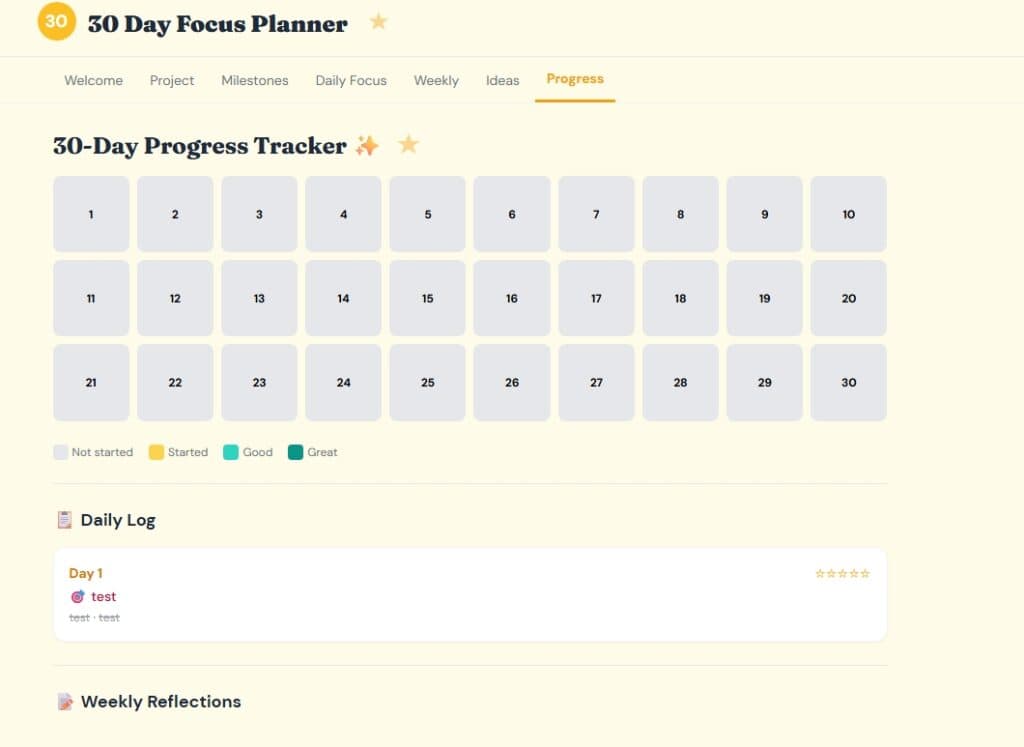
Instead of starting over, I asked Canva to redesign that section. I wanted it to show a better summary of the daily and weekly entries and keep the information someone added.
Canva created another version with a more useful daily log, weekly reflections, progress tracking, and clickable links.
This is how I work with other AI tools too.
I don’t expect the first answer to be the final answer. I look at what it created, test it, and give it more direction.
Start with a simple version. Then ask:
- What’s missing?
- What’s confusing?
- What would make this easier to use?
- Is the information being saved correctly?
- Does the progress section show what matters?
- Are the links working?
- Does the design fit the product?
You’re not failing when you ask AI to revise something. That’s part of creating with it.
How to Start a Canva Code Project
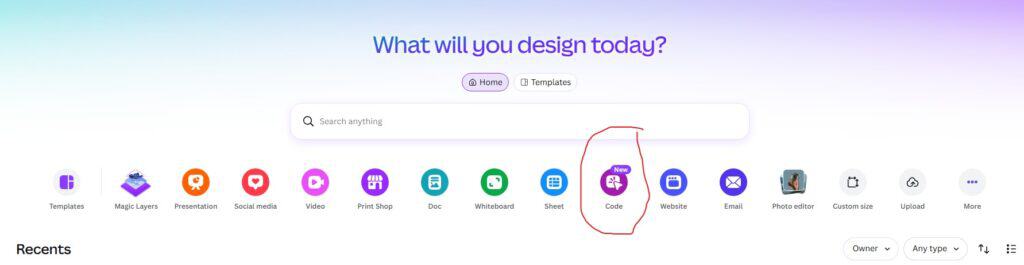
From the Canva home screen, open Canva AI and select Code. You may also see Code available directly from the home screen.
Then describe what you want Canva to build.
If you’re starting with a printable, you can upload images of important pages and explain how each section should work.
For example:
Create an interactive version of this 30-Day Focus Planner. Let users choose a main project, add milestones, enter daily priorities, complete weekly reflections, save their entries, and see their progress across all 30 days.
Once Canva creates the first version, test it with sample information.
Then continue the conversation with specific requests such as:
- Keep all the information entered in the daily and weekly sections.
- Add a visual progress overview.
- Show completed milestones on the progress page.
- Make saved links clickable.
- Add decorative elements that match the original planner.
- Make the layout easier to use on smaller screens.
Clear feedback helps Canva build a better second version.
Publishing and Sharing the App
Once you’re happy with the app, Canva gives you options for publishing and sharing it.
Depending on the available settings, you may be able to:
- Publish the app with a Canva link
- Connect a domain
- Adjust search visibility
- Add password protection
- Share it by email
- Copy the HTML and embed it on your website
If the Canva link is long or messy, you can hyperlink it inside an email or use one of your branded redirect links.
Before selling or publicly sharing the app, test the published version instead of testing only inside the Canva editor.
Pay Attention to Saved Data and Privacy
Canva Code can store information and may connect saved data to a sheet.
This means you need to check who can view or access the information before sharing the design. If customers or community members will enter personal information, review the sharing permissions and follow any privacy or data-collection laws that apply to your business.
Don’t collect information you don’t need.
It’s also a good idea to test the app from a separate browser or account so you can see what a customer would experience.
How Digital Product Creators Can Use Canva Code
This experiment started with a focus planner, but the idea could work with many types of digital products.
You could explore interactive versions of:
- Workbooks
- Challenges
- Habit trackers
- Goal planners
- Content planners
- Email planning tools
- Product idea generators
- Checklists
- Assessments
- Client onboarding tools
- Resource libraries
You don’t have to replace the printable version. The interactive app could become a bonus, an upgrade, a lead magnet, or a separate product.
Start With Something You Already Created
You don’t need to create an entirely new product to try Canva Code.
Start with a printable, planner, or workbook you already have. Choose one section that would be more useful if someone could complete it online, save the information, and see their progress.
Give Canva the idea. Let it build the first version. Then test it and keep talking to it.
The first version doesn’t need to be perfect.
It needs to give you something you can improve.
👋 Hey, I'm Pam!
I help women create and sell digital products — think Canva templates, printables, memberships, and simple AI tools. If you want to build real income doing work you actually love, you're in the right place.
🌿 HERE'S HOW WE CAN WORK TOGETHER:
📬 The Monetized Inbox (TMI) — My email marketing membership. Learn how to grow and monetize your list without the overwhelm.
(Co-hosted with Sadie Smiley!)
👉 https://themonetizedinbox.com/
🌳 Template Treehouse — Done-for-you digital products dropped every month. Perfect if you want to sell without starting from scratch.
👉 https://pamallenonline.com/ttt
🤖 Build a Bot Club — Monthly AI tools and bots built for creators like you. (Co-hosted with Sadie Smiley!)
👉 https://pamallenonline.com/bab
⚙️ Kianis — My all-in-one platform for digital creators. Funnels, email, memberships — all in one place. Use code 50off for $50 off a month-
👉 https://kianis.com
📍 FIND ME HERE:
📺 YouTube: @pamallenonline
📧 Email: [email protected]
✨ FB Group: Create & Sell Digital Products With PAM- https://www.facebook.com/groups/canvacreationswithpam
💕 skool group-Make Money With Pam & Sadie